
7 Mistakes People Make Before Sending Phones for Repair
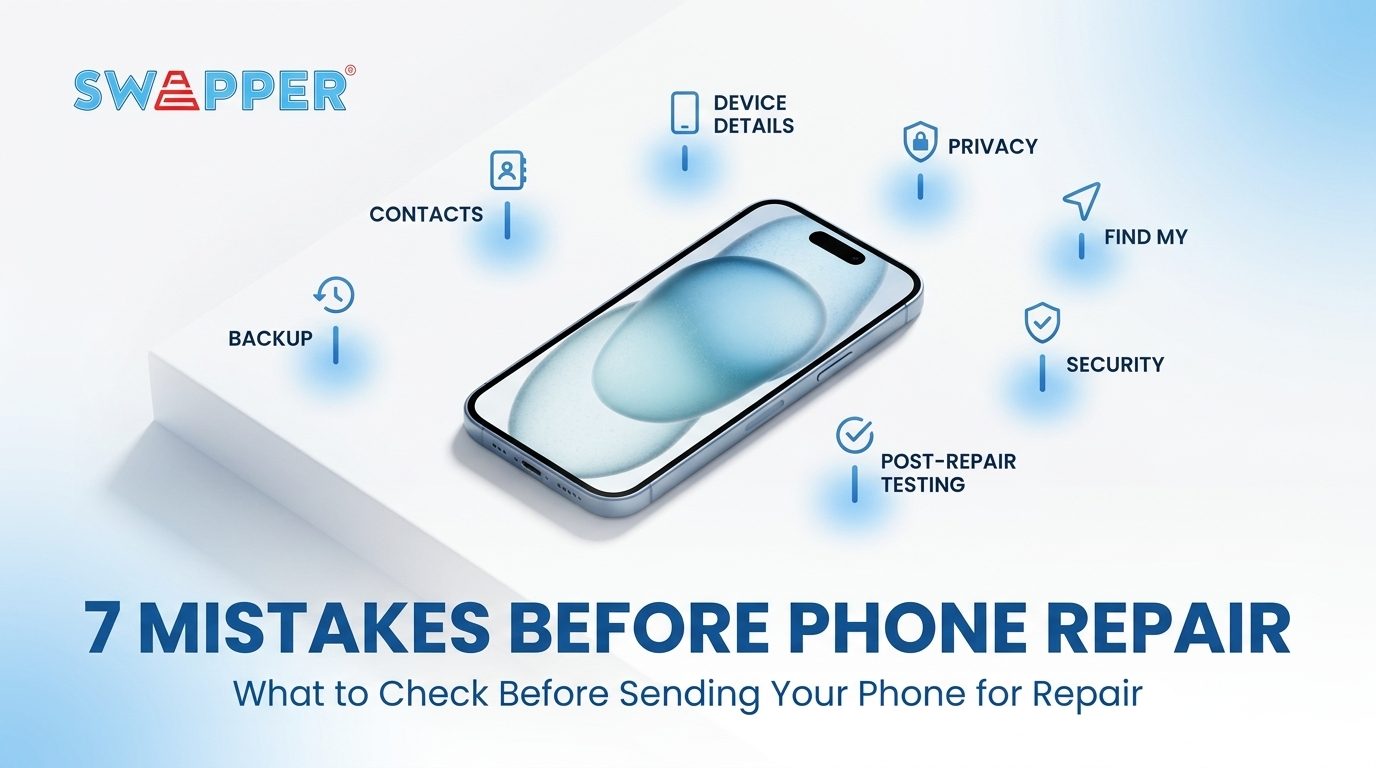
Sending your phone for repair can feel straightforward: hand over the device, explain the problem, and wait for it to be fixed. However, many people forget that their phone contains years of photos, messages, contacts, documents, passwords, and personal information.
A small mistake before handing over your device could result in lost data, privacy issues, or unnecessary delays. Taking a few minutes to prepare your phone properly can make the repair process much safer and smoother.
Here are 7 mistakes people make before sending phones for repair, along with what you should do instead.
1. Not Creating Phone Backups Before the Repair
One of the biggest mistakes is assuming that your data will still be there after the repair.
Although many repairs can be completed without affecting your personal files, there is always a possibility that a device may need to be reset, replaced, or undergo a repair procedure that affects stored data. This is why phone backups should be your first priority.
For iPhone users, Apple supports backing up an iPhone through iCloud, a Mac, or a PC. Apple also advises backing up the device before certain service or replacement procedures.
Before sending your phone away, make sure your latest phone backups have actually completed. Do not simply assume that automatic backup is working.
For iPhone, check:
For Android, use your device's Google backup settings and make sure important information is being synced or backed up.
Is My Phone Ready for Repair?
Complete this quick checklist before handing your phone over for repair.
Assuming iCloud Backups Include Everything
Another common mistake is thinking that iCloud automatically stores absolutely everything on your iPhone.
That assumption can cause problems. Some information may already be syncing separately through iCloud, while other data may rely on an actual backup or another service. Your backup setup also depends on which apps and services you use.
Before repair, review your iCloud backups and make sure your important information is accessible. Check your photos, contacts, messages, notes, and other important files rather than simply looking at the last backup date.
"If I had to replace my phone today, could I recover the information I need?"
If the answer is no, your backup process is not ready yet.
Apple recommends having a backup available before an iPhone service or replacement, because a device may be erased during servicing.
Forgetting to Back Up Contacts Separately
Your contacts may be some of the most important information on your phone, yet they are often overlooked.
This becomes especially important when contacts are stored locally on the device instead of being synced to a cloud account.
Android users can back up contacts to Google so contacts stored on the device or SIM can be saved as Google Contacts. Google explains that contacts saved to a Google Account can sync across supported devices and can be restored when moving to another phone.
You can also export contacts as a VCF file for an additional copy.
For iPhone users, check whether your contacts are syncing with iCloud or another account such as Google.
Do not wait until after the repair to discover that important phone numbers were stored only on the device.
Not Recording Your iPhone Serial Number or Device Details
Another mistake is failing to record important information about your phone before handing it over.
For iPhone users, an iPhone serial number check can be useful for documenting the exact device being submitted for repair. You can find the serial number by going to:
It is also useful to record other information such as the model, storage capacity, IMEI, and the phone's physical condition.
Take a few photos of the device before handing it over. Photograph the front, back, sides, camera area, and any existing scratches or dents.
This gives you a personal record of the phone's condition before the repair.
It can also help you compare the device when you receive it back.
Leaving Your Personal Information on the Phone
Your smartphone can contain highly sensitive information, including emails, photos, banking apps, private conversations, authentication apps, and saved accounts.
Leaving unnecessary personal information accessible during a repair can create an avoidable privacy risk.
The correct preparation depends on the repair provider and the type of repair. Some service providers may require access to the device for diagnostics, while others may instruct customers to erase the device before service.
For Apple service, Apple currently advises customers preparing certain iPhone service procedures to erase personal content and turn off Find My, depending on the service process.
Before doing a factory reset, make sure your phone backups are complete and that you know your account credentials.
Do not erase your phone first and worry about recovering your data later.
Forgetting to Turn Off Find My or Similar Device-Locking Features
Some people back up their data but forget about anti-theft and device-tracking features.
For iPhone users, Apple specifically instructs customers to turn off Find My when preparing an iPhone for certain service procedures. If Find My cannot be disabled directly on the device, Apple provides alternative removal steps through Find My or iCloud.com.
This is important because repair providers may not be able to proceed with certain services while device security features remain enabled.
The same principle applies to Android devices. Before repair, check whether your manufacturer or repair provider has specific requirements for device protection, account access, or factory reset protection.
Always follow the repair provider's instructions instead of disabling security features without understanding why they are required.
Not Checking Your Phone Immediately After the Repair
The preparation does not end when you collect your phone.
Another common mistake is putting the device straight into your pocket without checking whether everything works.
Before leaving the repair shop, test the features related to the original problem and quickly check essential functions such as:
If the phone was returned after being reset, restore your phone backups and make sure your important data is available.
For iPhone service, Apple notes that a repaired or replaced device may need to be restored from an existing iCloud or computer backup.
Phone Repair FAQ
Find quick answers to common questions about preparing your phone before repair.
Yes. Creating verified phone backups is one of the most important steps before sending a device for repair. A repair may involve resetting, replacing, or otherwise affecting the device, depending on the problem and repair procedure.
Not necessarily. Check what information is actually synced or backed up through your Apple account and other services you use. You should be confident that your important data can be recovered before handing over the device.
Do not remove your account blindly. Follow the repair provider's instructions. For certain Apple service procedures, Apple requires users to turn off Find My and erase personal content from the device.
Check whether your contacts are synced to iCloud, Google, or another account. Android users can sync device and SIM contacts to Google Contacts so they can be restored on another device.
Yes. Photograph the front, back, sides, and any existing scratches, dents, or other damage. This gives you a record of the device's condition before it enters the repair process.
Back up your important data, review your security settings, protect your personal information, and document the phone's condition.