
How to Restore Backup in iPhone and Fix Green Screen, Green Line & Touch Issues
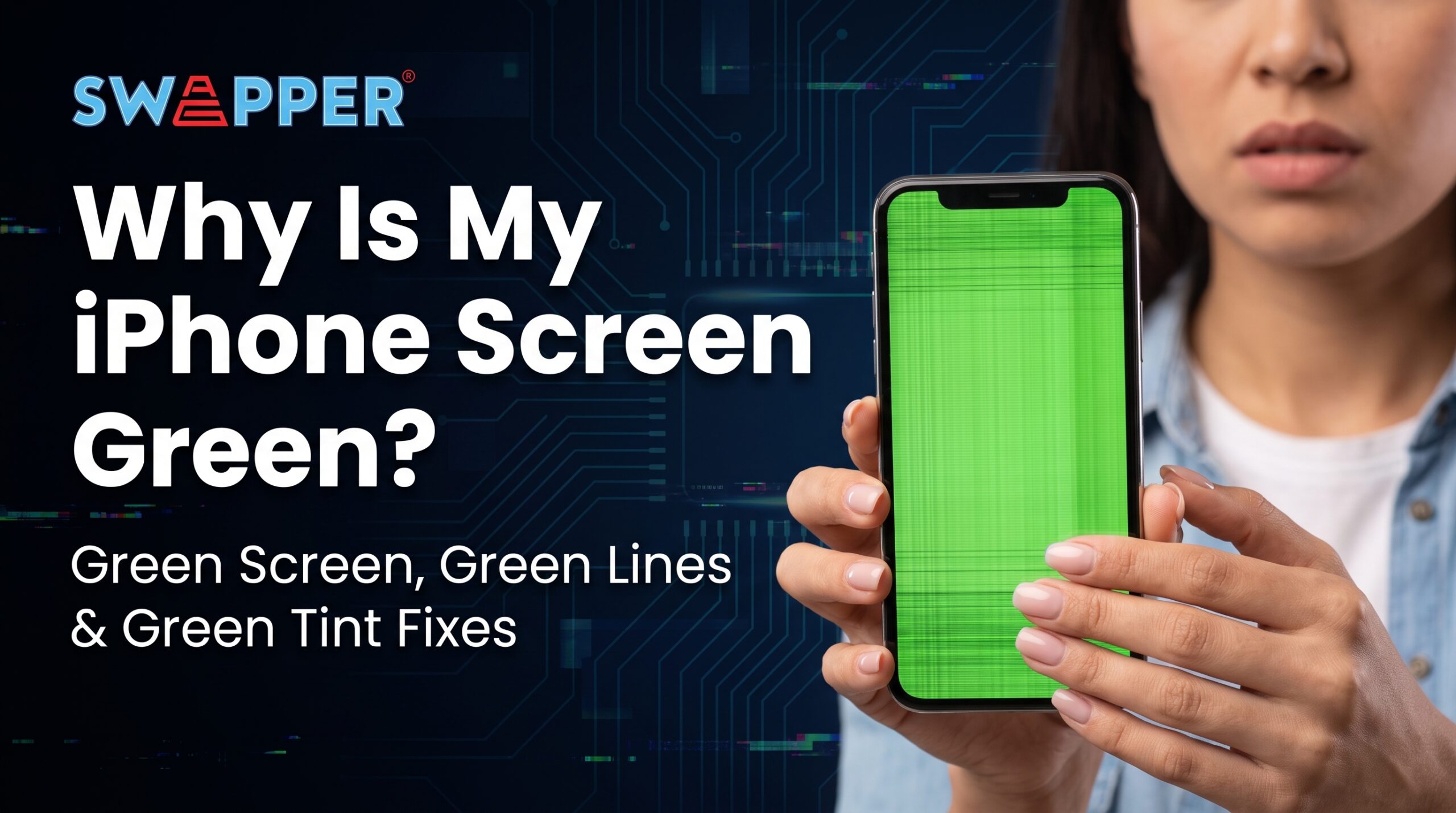
Your iPhone suddenly mengalami masalah seperti green screen, green tint, green lines, or the screen tidak respond bila disentuh? Jangan panic dulu. Some iPhone display problems may be caused by software glitches, while others could be related to the display hardware itself.
Before assuming that your iPhone screen is permanently damaged, there are several troubleshooting methods you can try. One of the useful options is to restore backup in iPhone, especially if the problem started after a software update, system error, or unexpected iOS issue.
In this guide, we will explain how to troubleshoot common iPhone display problems, including the iPhone green screen, green tint issue on iPhone 12, and situations where your iPhone screen is not responding to touch.
We will also cover how to perform a force restart iPhone, how to restore iPhone with iTunes, and when you should consider getting professional repair assistance.
Why Is My iPhone Screen Showing Green?
An iPhone green screen can happen for several different reasons. It is important to understand that not every green display problem has the same cause.
Sometimes, the issue may be related to a temporary software bug or an iOS system error. In other situations, the problem could be connected to the OLED display, display connector, physical damage, or another hardware component.
Some users may see a full green screen, while others experience a green tint that is more noticeable in dark environments or at low brightness.
If your iPhone is still functioning normally and the green effect appeared suddenly, you can start with basic troubleshooting before considering a repair.
Possible causes include:
- Temporary iOS software glitches
- Problems after an iOS update
- Display calibration or brightness-related issues
- OLED display problems
- Physical impact or accidental drops
- Liquid or water exposure
- Internal hardware damage
If you are experiencing an Apple iPhone 12 green screen problem, for example, it is worth trying software troubleshooting first. However, if the green display remains after restarting and updating the device, the issue may require further diagnosis.
What Causes an iPhone Green Screen?
An iPhone green screen can be caused by temporary iOS software glitches, display problems, issues after an iOS update, or hardware damage. If the problem continues after restarting and updating your iPhone, professional diagnosis may be required.
Can an iOS Software Issue Cause a Green Screen?
Yes. In some cases, a software bug or system error may affect how the display renders colours. Restarting your iPhone and installing the latest available iOS update can be useful troubleshooting steps.
Can Physical Damage Cause a Green Screen?
Yes. If your iPhone has been dropped, exposed to water, or suffered physical impact, the OLED display or internal components may be damaged. In this case, software troubleshooting may not resolve the issue.
What Should I Do If My iPhone 12 Has a Green Screen?
Start by restarting your iPhone and checking for available iOS updates. If the green screen or green tint continues, back up your important data and consider getting the device professionally diagnosed.
How to Fix Green Line on iPhone
If you are wondering how to fix green line on iPhone, the first thing to identify is whether the line is caused by software or hardware.
A green vertical or horizontal line that remains visible across different apps and screens may indicate a display-related issue. You can first try restarting the iPhone and checking for available iOS updates.
Take a screenshot on your iPhone and view the image on another device. If the green line does not appear in the screenshot, this can suggest that the issue may be related to the physical display rather than the software rendering the image.
Before: Software Display Glitch
The green line may appear temporarily due to a software bug, iOS issue, or system instability.
- The issue appears suddenly.
- The line disappears after restarting the iPhone.
- The problem may change after an iOS update.
- The display returns to normal after troubleshooting.
- The issue may not appear in screenshots viewed on another device.
After: Physical Display Damage
A persistent green line may indicate a problem with the OLED display or another internal display component.
- The green line remains after restarting.
- The issue appears across different apps and screens.
- The problem started after a drop or physical impact.
- The iPhone was exposed to water or moisture.
- The green line becomes worse or is joined by other display problems.
Restart your device and check whether the green line disappears after the system boots up again.
Check for the latest available iOS update. Software updates may include bug fixes that can resolve certain display-related problems.
Change your display brightness and check whether the appearance of the green line changes under different brightness levels.
If the problem started after installing a new app or experiencing system instability, consider whether the timing may be connected.
Before performing major troubleshooting or resetting your iPhone, make sure your important photos, contacts, messages, and files are backed up.
If the green line remains after trying basic troubleshooting, consider having your iPhone inspected by a qualified repair professional.
If the green line appeared after the device was dropped, bent, or exposed to moisture, there is a higher possibility of physical display damage. In these situations, software troubleshooting may not be enough to resolve the problem.
Understanding the Green Tint Issue on iPhone 12
The green tint issue iPhone 12 users may experience is slightly different from a full green screen or a permanent green line.
In some cases, the display may appear to have a subtle green tint, particularly when viewing dark content at low brightness. This can make the screen look different from normal.
If you are experiencing an Apple iPhone 12 green screen or green tint, try adjusting your display settings and updating iOS. You can also restart your iPhone to determine whether the issue is temporary.
Green Tint Appears?
Check whether the green tint is visible across different apps or only under specific conditions, such as dark content or low brightness.
Restart Your iPhone
Restart your iPhone and check whether the green tint disappears after the device boots up again.
Update iOS
Check for available iOS updates. A software update may include fixes for certain display-related bugs or system issues.
Check Different Brightness Levels
Increase and decrease the screen brightness. Take note of whether the green tint becomes more or less noticeable at different brightness levels.
Back Up Your Data
If the green tint continues, create a recent backup of your important photos, contacts, messages, and other files before attempting major troubleshooting.
Consider Professional Diagnosis
If the green tint becomes worse, appears suddenly, or is accompanied by flickering or green lines, consider having your iPhone professionally inspected.
What Does the Result Mean?
If the green tint disappears after restarting or updating iOS, the issue may have been related to software. If the tint remains persistent or is accompanied by flickering, lines, or other display abnormalities, further diagnosis may be necessary.
If the problem continues, you may want to compare the display at different brightness levels. Take note of whether the green tint is visible across all apps or only under specific conditions.
It is also important to avoid immediately assuming that every green tint is a hardware failure. Display technology, software updates, and individual panel characteristics can all affect how the screen appears.
If the green tint becomes significantly worse, appears suddenly, or is accompanied by flickering or visible lines, professional inspection may be necessary. Back up your data before sending the device for repair whenever possible.
Try a Force Restart iPhone
One of the easiest troubleshooting steps is to perform a force restart iPhone. This is especially useful when your device is frozen, the touchscreen is not responding, or the display is stuck on a particular screen.
A force restart is different from a normal restart. It is designed to restart the iPhone when the usual shutdown process cannot be completed.
Quickly press and release the Volume Up button.
Quickly press and release the Volume Down button.
Press and hold the Side button on your iPhone.
Continue holding the Side button until the Apple logo appears on the screen.
Once the Apple logo appears, release the Side button and wait for your iPhone to restart.
If your iPhone screen is not responding to touch, this method can be particularly helpful because you do not need to interact with the touchscreen to restart the device.
After the restart, check whether the green screen or green tint has disappeared. If the display returns to normal, the problem may have been caused by a temporary software glitch.
If the issue keeps coming back, a force restart may only provide a temporary solution. You may need to investigate whether the problem is caused by software or hardware. If the green screen, green tint, or touchscreen issue continues, consider backing up your data and seeking professional diagnosis.
What to Do If Your iPhone Screen Is Not Responding to Touch
Another frustrating problem occurs when your iPhone screen is not responding to touch. You may be able to see everything on the display, but you cannot swipe, tap, or enter your passcode.
Before assuming that your touchscreen is damaged, try these simple checks to determine whether the problem is caused by a temporary software issue or a potential hardware problem.
Temporarily remove your screen protector and check whether the touchscreen responds normally. A damaged, poorly installed, or overly thick screen protector may sometimes interfere with touch sensitivity.
Make sure your hands and the iPhone display are clean and dry. Water, moisture, or excessive dirt on the screen can sometimes affect touch responsiveness.
Disconnect any Lightning or USB-C accessories connected to your iPhone. Then check whether the touchscreen starts responding normally.
Remove your phone case temporarily, especially if it is pressing against the edges of the display. Then test the touchscreen again.
If your iPhone is frozen or the touchscreen is completely unresponsive, try performing a force restart. This allows you to restart the device without using the touchscreen.
Test different areas of the display to determine whether the problem affects the entire screen or only a specific section.
If the screen becomes responsive again after restarting, the problem may have been caused by a temporary software issue. Continue monitoring your iPhone to see whether the problem happens again.
However, if certain areas of the screen consistently fail to respond, especially after the iPhone has been dropped or exposed to water, this could indicate a hardware problem.
If your iPhone touchscreen remains unresponsive, avoid repeatedly restarting or resetting the device without first considering your data. If you have important photos, contacts, messages, or files, make sure you have a recent backup before performing major troubleshooting steps or resetting your iPhone.
Restore Backup in iPhone Before Performing Major Troubleshooting
Before performing more advanced troubleshooting, it is a good idea to restore backup in iPhone if you have already created a backup.
A backup can help protect important information such as photos, contacts, messages, settings, and other data. Depending on how the backup was created, you may use iCloud or a computer to restore your information.
If your iPhone is still working and you can access the device, make sure your important data is backed up before performing a factory reset or other major system changes.
Backup
Make sure you have a recent backup of your important data.
Troubleshoot
Try basic solutions such as restarting or updating your iPhone.
Reset
If necessary, perform a factory reset or other major system changes.
Set Up iPhone
Complete the initial setup process after resetting your device.
Restore Backup
Select your available backup and restore your important information.
The general process is to first make sure you have a recent backup, confirm that your important data is included, perform the necessary troubleshooting or reset, and then set up your iPhone again.
Make sure you have a recent backup.
Confirm that your important photos, contacts, messages, and other data are included in the backup.
Perform the necessary troubleshooting or reset.
Set up your iPhone again after the reset or troubleshooting process.
Select the option to restore backup in iPhone during the setup process.
Choose the appropriate backup and wait for the restoration process to complete.
If you are interested in learning more about useful iPhone features and ways to make your daily phone usage more efficient, check out our guide on iPhone shortcuts that can save you time every week .
When Should You Get Your iPhone Repaired?
If you have tried a force restart, updated iOS, and performed other basic troubleshooting but the problem remains, it may be time to consider professional repair.
You should especially consider getting your iPhone checked if you notice one or more of the following symptoms:
Not sure whether you should repair your damaged iPhone or replace it with another device? Read our guide on whether you should repair or replace a damaged iPhone to help you make a more informed decision.